To view all contracts that you or someone has signed on your behalf, as a Talent User, please follow the steps below.
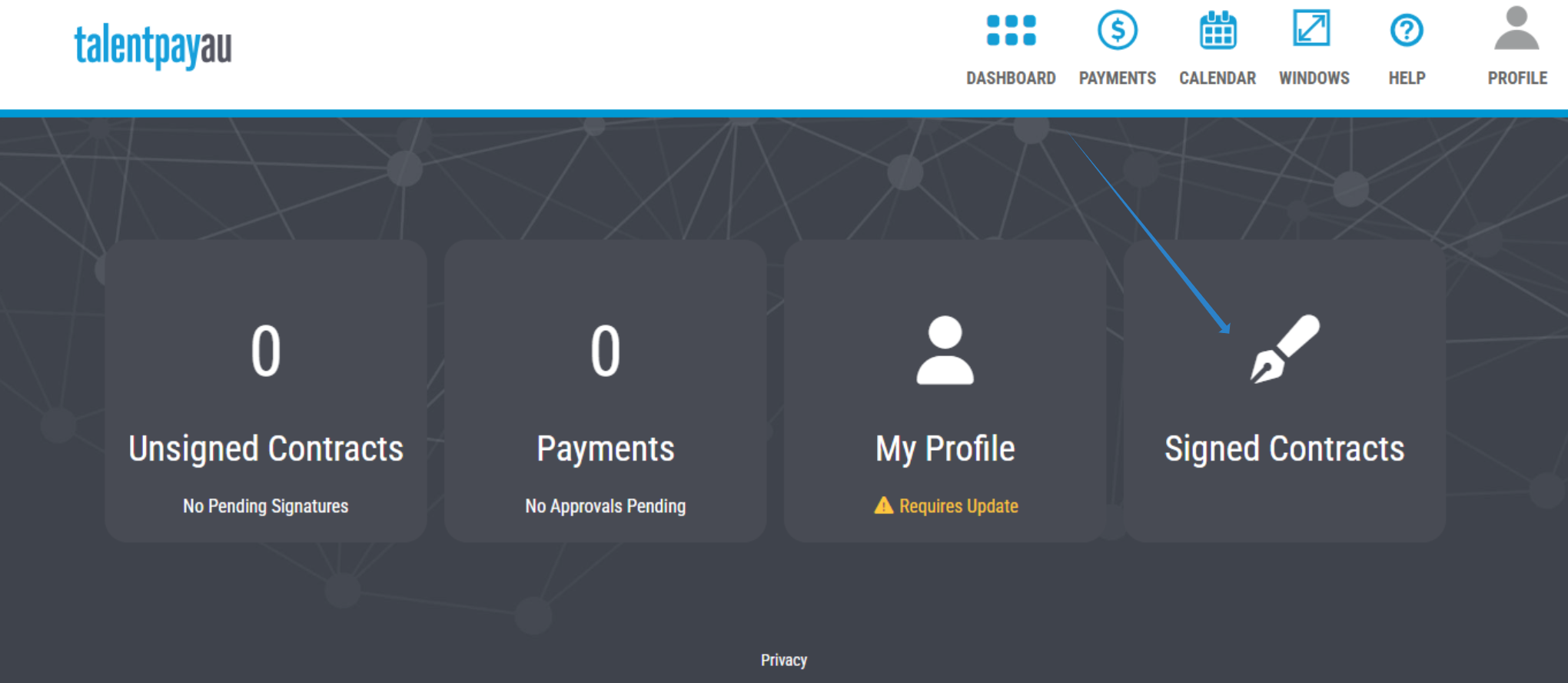
1. Log into your Talentpay account and select the Signed Contracts widget. If you are already logged in and have another window open, select Dashboard from the top navigation bar and then select the Signed Contracts widget.
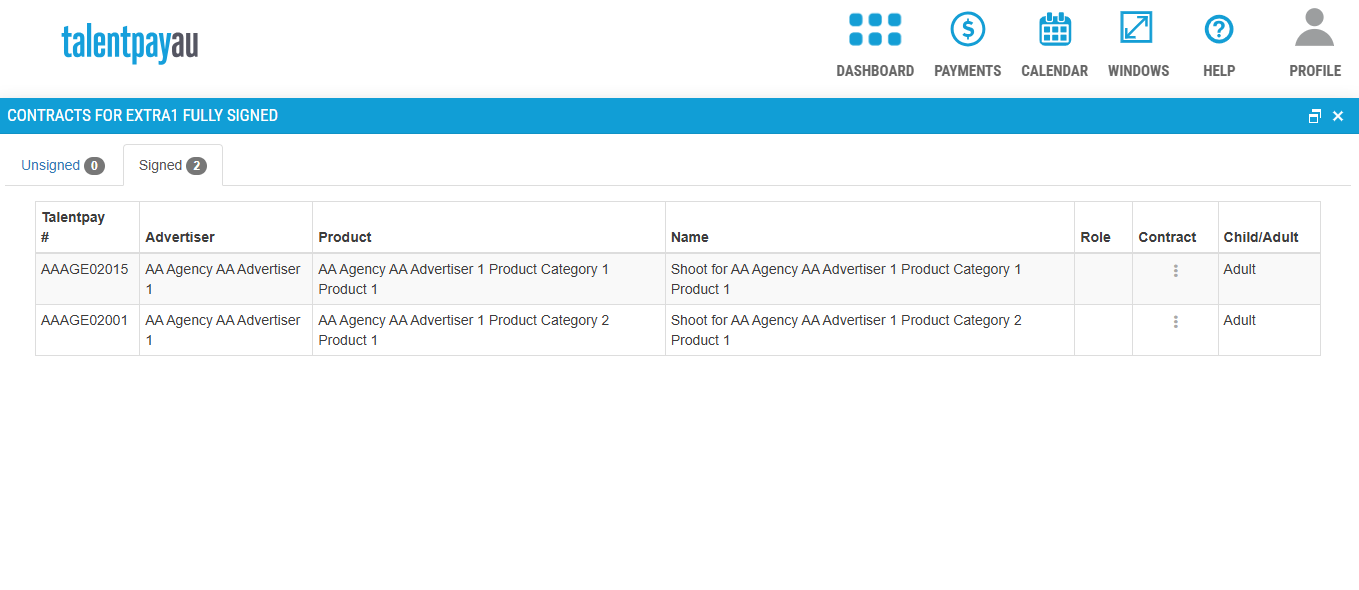
2. To view or download a contract, click the three vertical dots under the 'Contract' column.
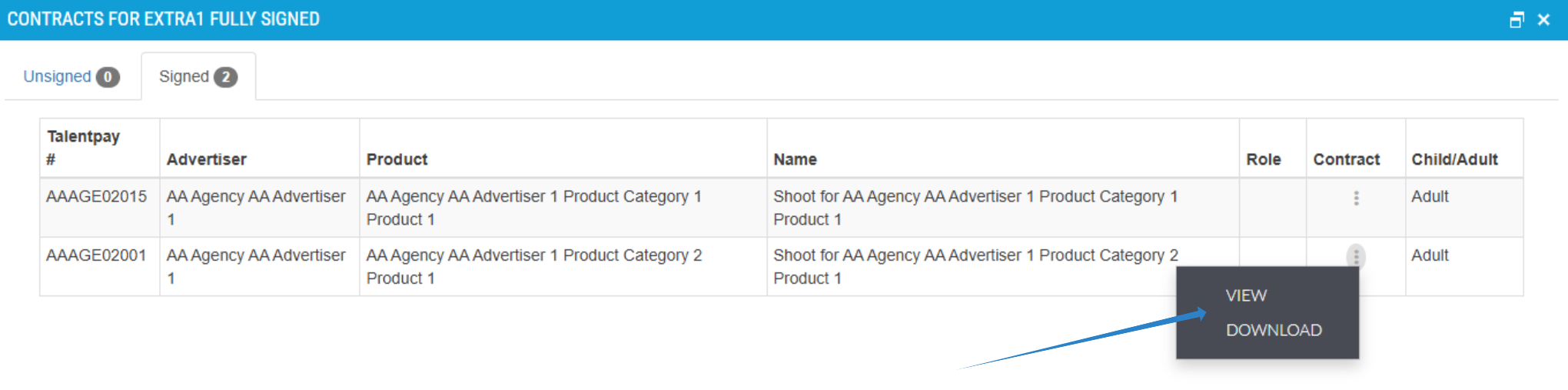
3. A menu will appear; you can either choose to 'View' the contract or 'Download' the contract as a PDF.
Was this article helpful?
That’s Great!
Thank you for your feedback
Sorry! We couldn't be helpful
Thank you for your feedback
Feedback sent
We appreciate your effort and will try to fix the article