When a contract is ready for you to sign, you will receive an email notification containing a link to the signing page.
Tip: Check your Talentpay Dashboard to see if there are any contracts awaiting your review and signature for jobs listed in Talentpay.
To sign a contract as Talent or Crew, please follow the steps below:
- Click the ''View Contract'' button in the email body. You will be taken to the Talentpay portal, you may be asked to log in with your Talentpay username and password.
- Once you are in your Talentpay account, the ''Contract'' window will automatically appear.
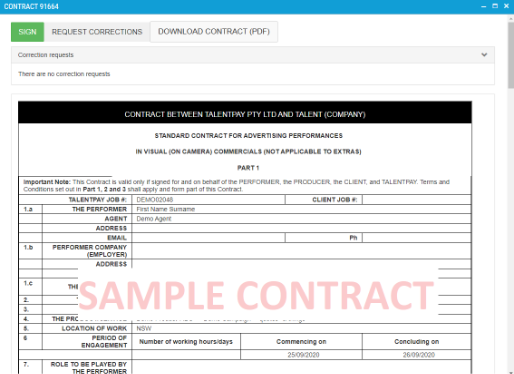
- Read through the contract fully and make sure your personal details are correct before proceeding to sign, you may need to scroll down to view the whole document.
- Select the green SIGN button when you are ready to sign the contract.
- In the signature pop-up window, apply your signature by either typing your full name in the field on the Type tab or navigating to the Draw tab if you would prefer to use a drawn signature for the selected contracts.
Important – If you are using a small device, we recommend rotating it to landscape mode for the best signing experience.
Note: When drawing your signature, you may see the error message: "This signature looks too small. Please draw your full signature." This simply means that you need to draw your signature larger.
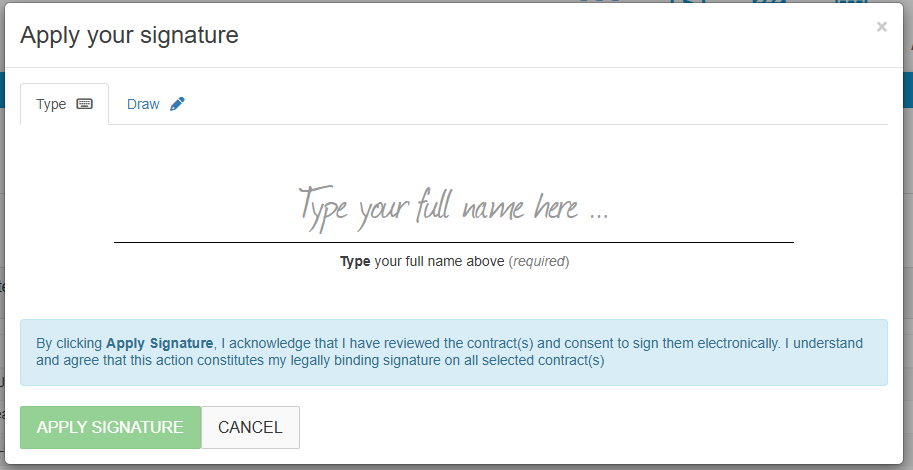
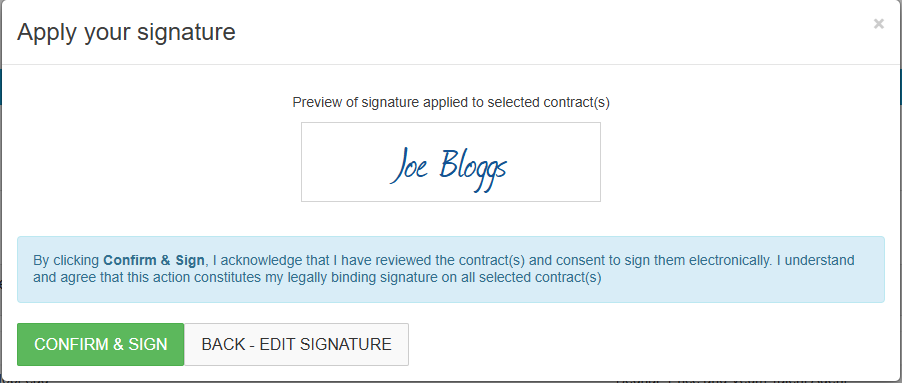
Then click the 'Apply Signature' button to progress with signing the selected contracts. You will be shown a preview of the signature that will be displayed on the selected contracts. If the signature looks correct, click CONFIRM & SIGN to complete the signing of the selected contracts.
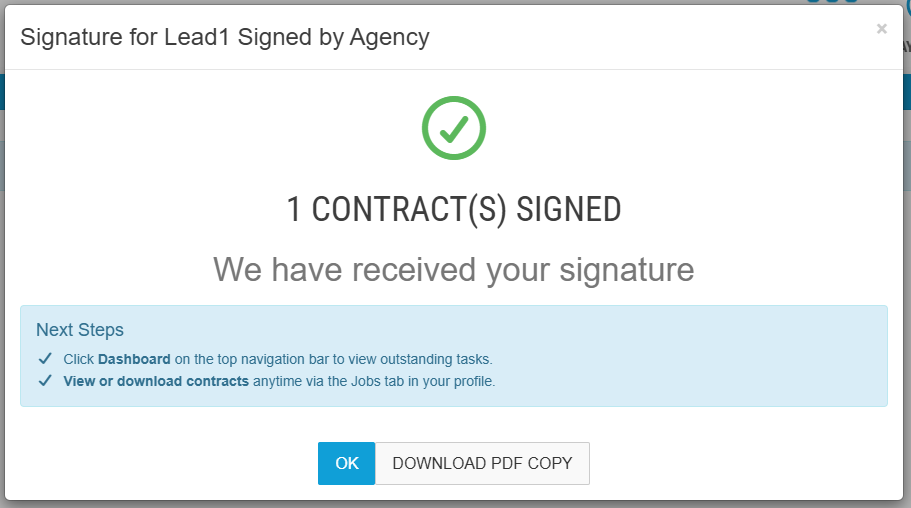
- Once you have successfully signed a contract(s) a pop-up will appear to confirm your signature has been applied with the option to download the contract in PDF format by using the ''DOWNLOAD PDF COPY'' button.
Was this article helpful?
That’s Great!
Thank you for your feedback
Sorry! We couldn't be helpful
Thank you for your feedback
Feedback sent
We appreciate your effort and will try to fix the article