Talentpay sends you an email notification when a Budget Reconciliation (BR) is ready for your initial or final review and approval.
Note: Depending on the job type, some Budget Reconciliations only require final approval. In these cases, you will not receive an initial approval request.
The email includes a link to a live view of the budget, where you can:
- Review talent costs
- Approve costs or request changes
- Track reconciliation status
- View job details and related information
- Access cost statistics and summaries
Accessing the Budget Reconciliation
- Click the “Budget Reconciliation” button in the email.
- You will be directed to the Talentpay portal. Log in with your Talentpay username and password if prompted.
- After logging in, you will land directly on the Budget Reconciliation screen for the relevant job.
Tip: You can also check your Talentpay dashboard to see what Costs are pending your approval via the Costs dashboard widget.
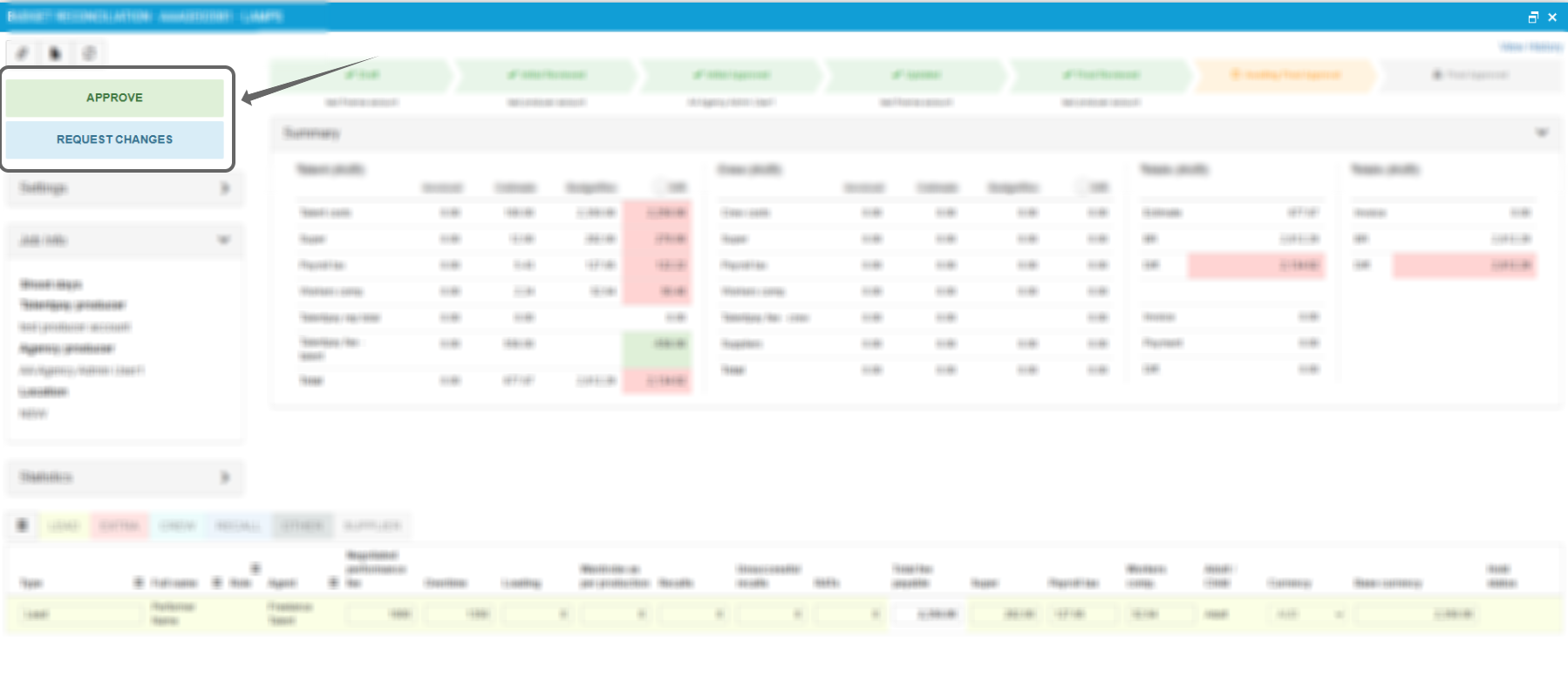
Approving Costs
- Review the costs displayed on the screen.
- Click “Approve”.
- The status will update to reflect your approval.
Requesting Changes
- Review the costs displayed on the screen.
- Click “Request Changes”.
- Enter the request by specifying the talent name and the column you are requesting a change in.
- Submit the request.
- The status will update to reflect your request.
What Happens Next
- Talent payments are sent to the talent or agent for approval. If changes are requested by talent or agents (e.g., expense reimbursements), we will contact you.
- For change requests, our team will amend the Budget Reconciliation or contact you for more details.
- Payment status and date of payments can be viewed in the last column "Payment Status". A status of:
- Paid means the talent on that line item has been fully paid.
- Unpaid means the talent is pending payment.
- Partially Paid is where some costs have been paid and some are still being processed.

Tip: For closed jobs where financials have been completed, you can still access the Budget Reconciliation (BR) by opening the Job Summary and selecting the Budget Rec icon.
Was this article helpful?
That’s Great!
Thank you for your feedback
Sorry! We couldn't be helpful
Thank you for your feedback
Feedback sent
We appreciate your effort and will try to fix the article