At Talentpay, we take the security of our systems and your data seriously. To help protect your account, we offer Two-Factor Authentication (2FA) and strongly recommend that all users enable it.
When 2FA is enabled, you’ll be prompted to enter a verification code from your chosen authenticator app on your mobile device after entering your username and password. This additional step provides an extra layer of security, helping to keep your account safe from unauthorised access.
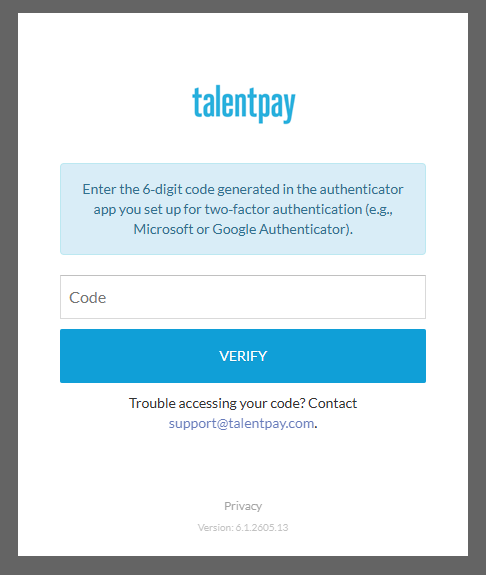
Tip: The authentication code is generated in the authenticator app you set up - it is not sent via SMS.
Quick Navigation:
Activate 2FA
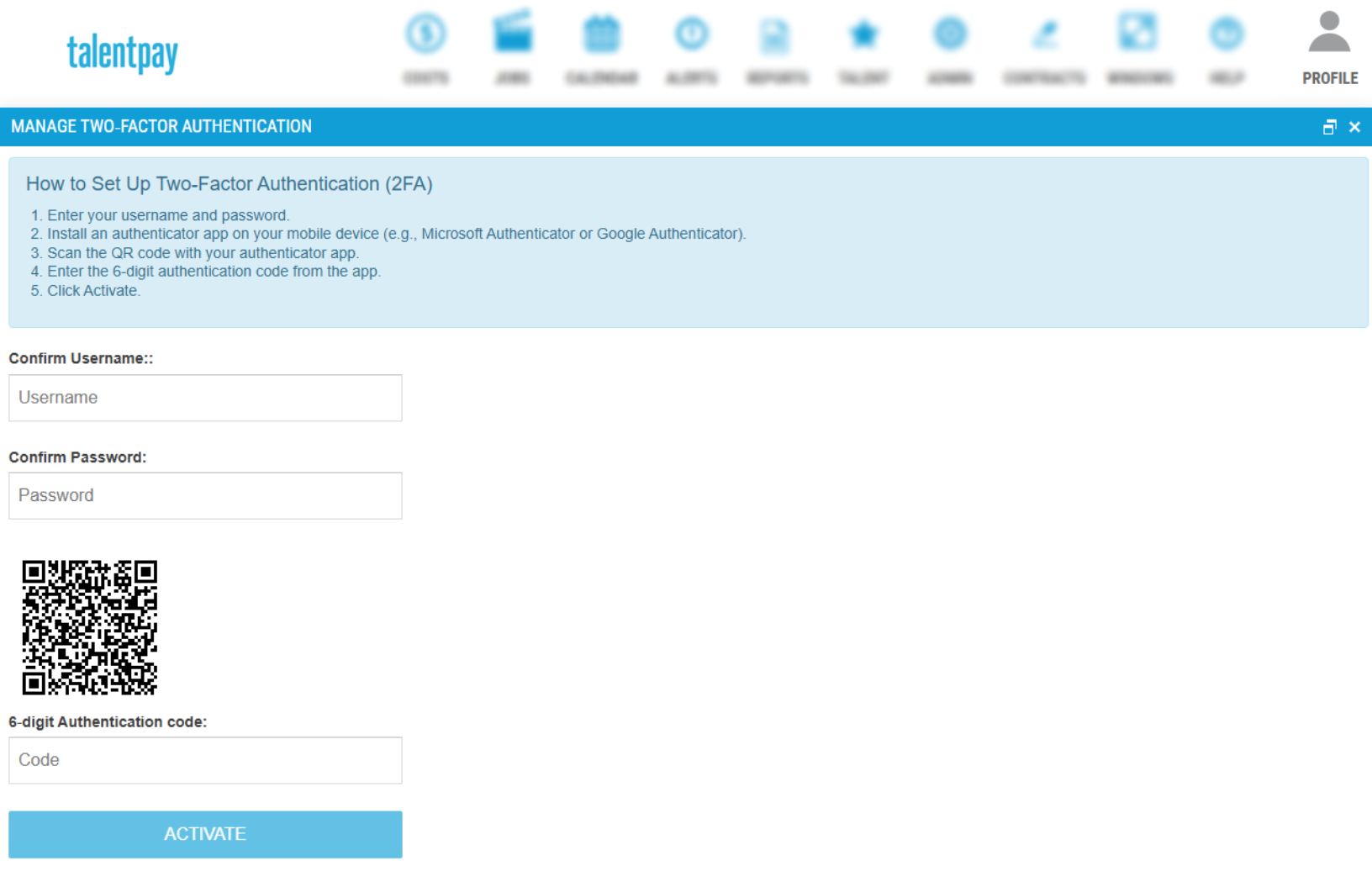
After logging into your Talentpay account, click your profile icon in the top navigation bar and select Manage Two-Factor Authentication. This will open the 2FA management window.
In this window, follow the steps outlined in “How to Set Up Two-Factor Authentication (2FA)” to complete the setup.
Once 2FA is activated, you will be prompted to enter a 6-digit verification code from your authenticator app each time you log in, after entering your username and password.
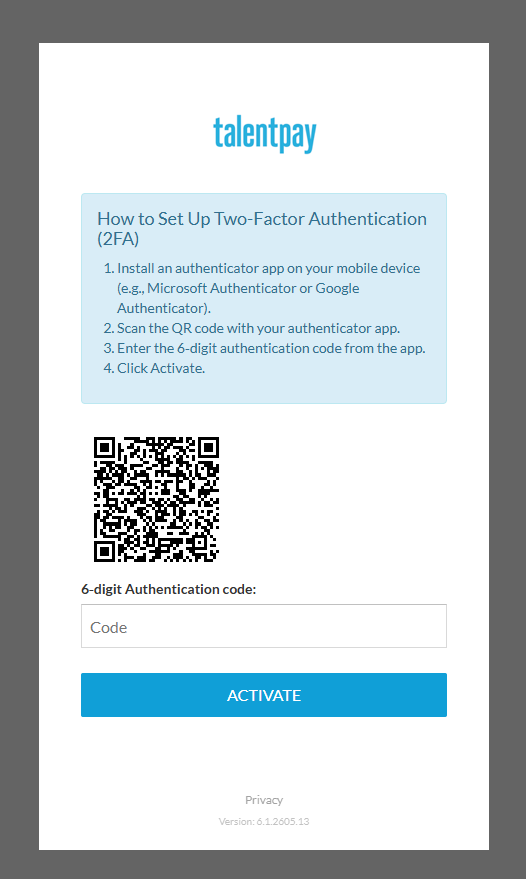
Sometimes, we may require 2FA to be activated before you can access your account. In this case, after entering your username and password, you will be prompted to set up 2FA before being able to access your account. Simply follow the on-screen instructions to complete the setup and activate it.
Deactivate 2FA
We strongly recommend keeping 2FA enabled to ensure your account and data remain secure. However, if you need to disable it, follow the steps below.
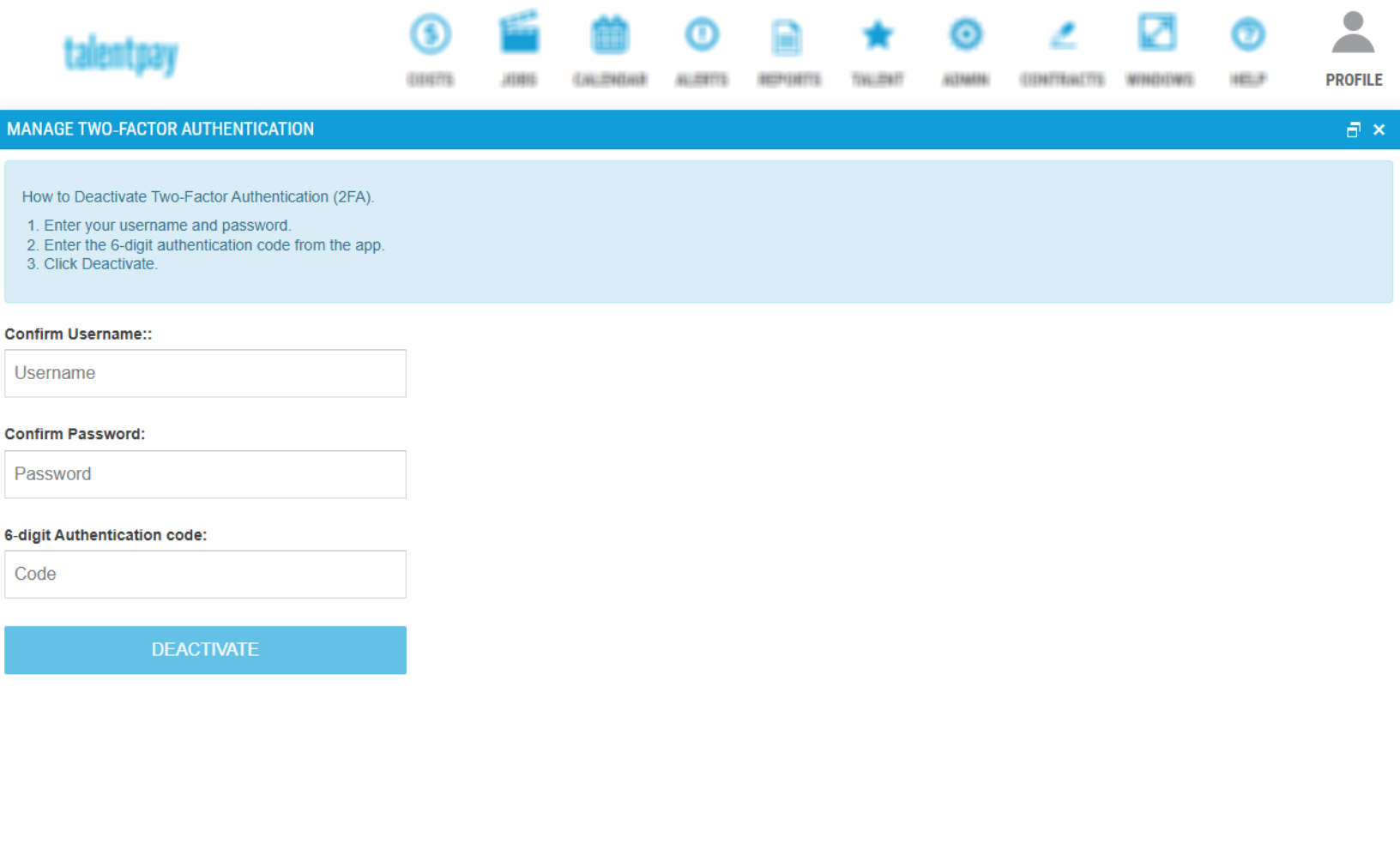
After logging into your Talentpay account, click your profile icon in the top navigation bar and select Manage Two-Factor Authentication. This will open the 2FA management window.
In this window, follow the steps outlined in “How to Deactivate Two-Factor Authentication (2FA)” to complete the process. If these steps are not visible, try closing and reopening the window. If you only see the option to activate 2FA, it means 2FA is already deactivated on your account.
Once 2FA is deactivated, you will no longer be prompted to enter a 6-digit verification code from your authenticator app when logging in after entering your username and password.
Was this article helpful?
That’s Great!
Thank you for your feedback
Sorry! We couldn't be helpful
Thank you for your feedback
Feedback sent
We appreciate your effort and will try to fix the article